Sharing dashboards publicly
Sometimes you want to give someone a look at your analytics without inviting them as a team member. For that, Voris offers public dashboards — a read-only, shareable URL that shows a snapshot of your dashboard to anyone who has the link.
Typical use cases:
- Send a weekly traffic summary to a client who does not need a login.
- Post a transparency link on your own site showing how many visitors you get.
- Share numbers with a colleague during a quick review call without adding them to your team.
Generating a share link
-
Open your site and click Site settings in the sidebar.
-
Open the Public dashboard tab.
-
If no link exists yet, you will see:
No public dashboard link. Generate one to share read-only analytics.
-
Click Generate link.
A 24-character token is created, and the full shareable URL is displayed. Copy it and send it to whoever you want to share with.
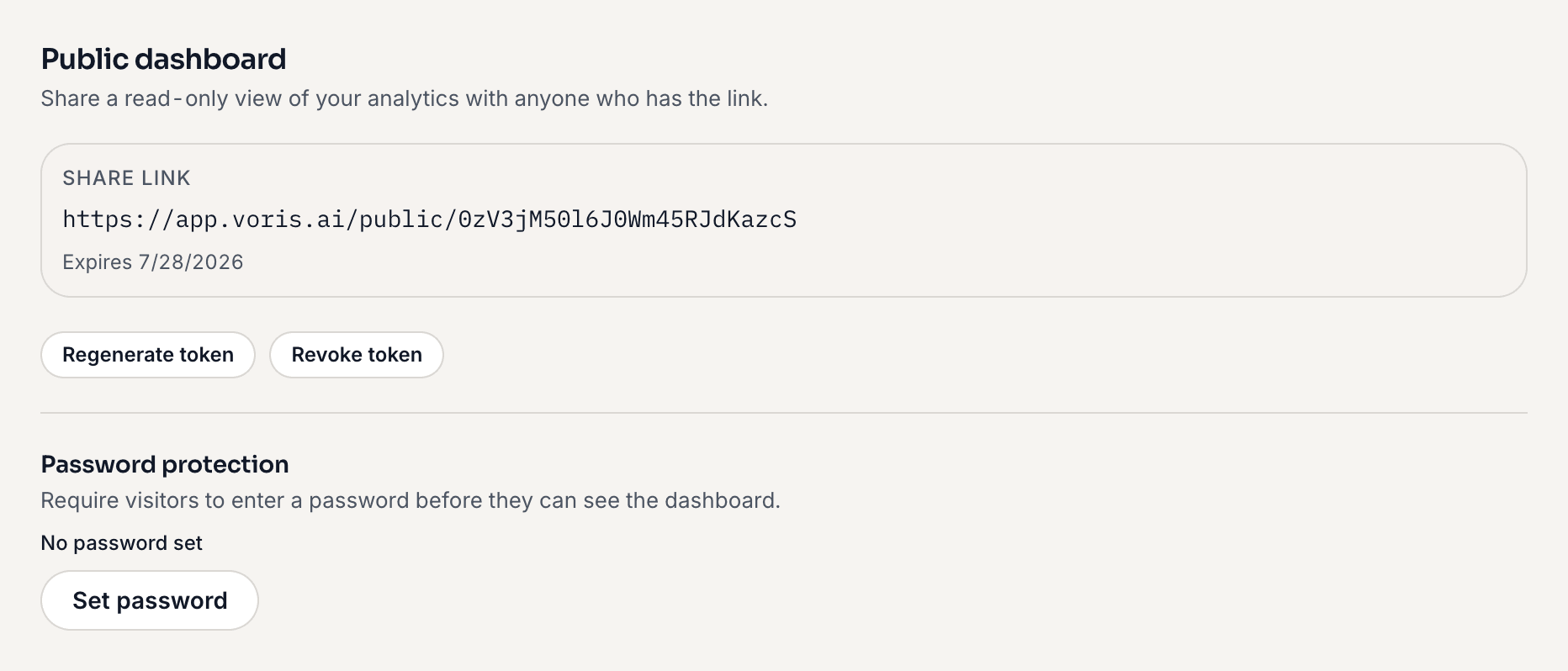 Public dashboard settings
What viewers see
Anyone with the link sees a read-only version of the dashboard for the selected site. They can:
- See the pageviews chart, big-number cards, and breakdown panels.
- See the most recent 7 days of data (the period is fixed for public viewers).
They cannot:
- Change any settings.
- See other sites in your organization.
- Export CSV data.
- Access the live indicator or any real-time counters.
- See anything that would require a login.
The URL does not require a Voris account. Anyone you send it to can open it, unless you set a password.
Tokens expire after 30 days
For security, every public dashboard token expires 30 days after it is generated. After that, the link stops working and visitors see:
This dashboard is not available. The link may have expired or been revoked.
To extend the share, regenerate the token before (or after) it expires.
Regenerating a token
Regenerating creates a new 24-character token and invalidates the old one. Anyone holding the old link will stop being able to access it; they need the new URL.
- In Site settings, open the Public dashboard tab.
- Click Regenerate token.
- Copy the new URL and re-send it to your viewers.
Regenerating also removes any password set on the link.
Use regenerate when:
- You want to extend the 30-day window.
- You suspect the old link was shared further than you intended.
Revoking a token
Revoking kills the link entirely. No one can access the public dashboard until you generate a new one.
-
In Site settings, open the Public dashboard tab.
-
Click Revoke token.
-
Click Confirm. You will see:
Public dashboard token revoked
Use revoke when:
- A client relationship has ended.
- You no longer want a public-facing view available.
- You believe the link has been leaked and you do not want a new one right away.
You can always generate a fresh link later.
Password protection
You can require a password before anyone sees the public dashboard.
- In Site settings, open the Public dashboard tab.
- Under Password protection, click Set password.
- Enter a password of at least 8 characters and confirm.
Visitors then have to enter the password before the dashboard loads. Use Change password or Remove password to update it. Regenerating or revoking the link also removes its password.
Security notes
- The 24-character token is long enough that it cannot practically be guessed. Anyone who has the full URL has access, unless you set a password.
- If you email or Slack the link, treat it as moderately sensitive — anyone who forwards it has the same access.
- Public dashboards never expose visitor-level data (there is no visitor-level data in Mode A anyway).
- No account data, team information, or other sites are reachable from the public dashboard URL.
Related
- Site settings — every toggle on the settings page.
- Managing your team — when you want to give someone a full login instead of a share link.