Managing your team
Voris is built around organizations. Each organization has its own sites, its own settings, and its own team.
This page covers how to invite people, what each role can do, and how to change someone’s access.
Where team management lives
- Click the organization switcher at the top-left of the sidebar.
- Choose Organization settings.
- Click the Team tab.
You will see a list of everyone in your organization along with their role.
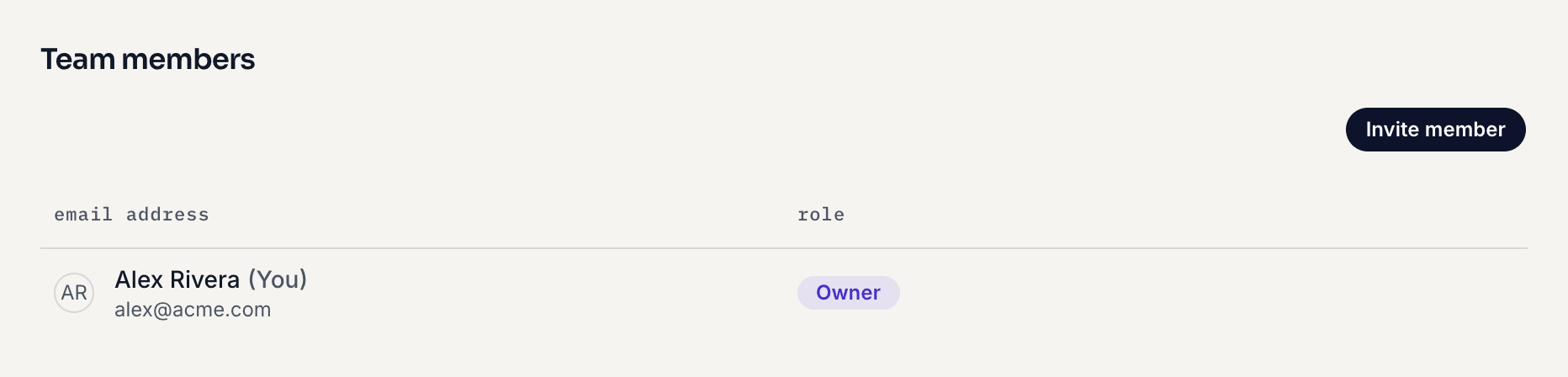 Team members list
The four roles
Everyone in an organization has one of four roles. When you invite someone, you choose admin, member, or viewer; the owner role is given by promoting someone who is already a member. You can change a role later at any time (with one exception — see Owner safeguards below).
Owner
Full control over everything in the organization. Owners can:
- Invite and remove any member, including other owners.
- Change anyone’s role.
- Edit organization settings.
- Edit, soft-delete, or manage any site.
- Manage billing and change the plan.
- Promote another member to owner.
You are automatically made the owner the first time you create an organization. Most teams keep two owners for safety.
Admin
Like an owner, but without the ability to promote someone to owner, or to change or remove owners and other admins.
Admins can:
- Invite new members.
- Remove members and viewers, and change their roles.
- Manage billing and change the plan.
- Edit all site settings.
- Manage site-level toggles and tokens.
Admins cannot:
- Promote someone to owner.
- Change the role of, or remove, an owner or another admin.
Use admin for a trusted teammate who should be able to manage day-to-day settings but not change who owns the business.
Member
Can create sites and use the product.
Members can:
- See all sites in the organization.
- Create new sites.
- View dashboards and export CSVs.
Members cannot:
- Invite other members.
- Change anyone’s role.
- Change site settings. They can view most site settings, and run the checks on the Install tab.
Use member for people on your team who need to add sites and use the product.
Viewer
Read-only access to dashboards.
Viewers can:
- See sites in the organization.
- Open dashboards and read the numbers.
Viewers cannot:
- Create new sites.
- Edit anything.
- Invite members.
Use viewer for clients, executives, or freelancers who just want to look at numbers without changing anything.
Inviting a team member
- Go to Organization settings and the Team tab.
- Click Invite member.
- Enter the person’s email address.
- Pick a role: admin, member, or viewer. To make someone an owner, invite them first, then have an owner change their role.
- Click Send invite.
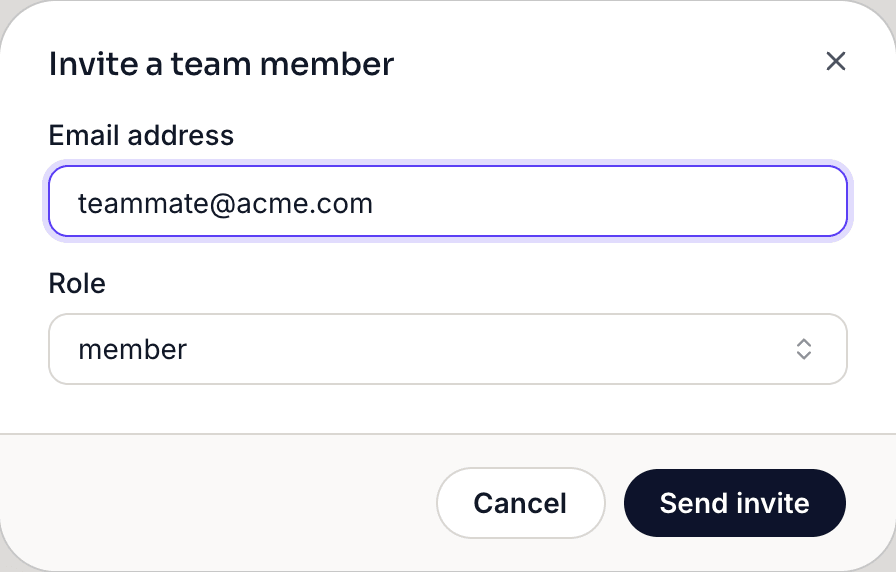 Invite member
A note on invites
The person you invite does not need a Voris account yet. Voris emails them an invitation link. When they open it, they sign in — or create an account — with the email address you invited, and they join your organization. If they are signed in with a different email address, Voris asks them to switch accounts first.
Invitation links expire after 7 days. To send a pending invitation again, find it under Pending invites on the Team tab and click Resend invite — this sends a fresh link, valid for another 7 days. Inviting someone who is already in your organization changes nothing. If an invitation has expired and no longer appears under Pending invites, contact support.
Changing someone’s role
- Find them in the team list.
- Click Change role.
- Pick the new role.
The role updates immediately and is visible to other team members.
Removing a member
-
Find them in the team list.
-
Click Remove member.
-
Confirm. You will see a confirmation message like:
Are you sure you want to remove {name} from this organization?
The removed member loses access immediately. Their own account still exists, but they cannot see your sites or settings anymore.
Owner safeguards
Two rules exist to keep organizations from getting locked out:
You cannot demote the last owner
An organization always keeps at least one owner. You cannot change your own role or remove yourself from the team list, so if you are the only owner and want to step down, promote someone else to owner first; the new owner can then change your role.
Only owners can promote someone to owner
Admins cannot create new owners. This prevents an admin from taking over an organization. If you need to promote someone, an existing owner must do it — for admins, the Owner option in the role menu is unavailable.
Audit logging
Every member change — invites, removals, role changes — is recorded, along with changes to sites, goals, and API keys. Owners and admins can see the history under Organization settings → Audit log.
Limits
-
Members: there is no limit on how many people an organization can have. To prevent abuse, an organization can send up to 10 invites per hour. Past that, you will see:
Too many invites. Please wait before sending more.
-
Sites: your plan sets how many sites an organization can have. When you reach it, adding a site shows a message like:
Your plan name plan allows up to N sites. Upgrade your plan to add more sites.
Upgrade under Organization settings → Billing, or contact us if there’s no larger plan you can buy. The site allowance for each plan is listed on the pricing page .
Related
- Getting started — how someone signs up for the first time.
- Sharing dashboards publicly — when you want to share a read-only dashboard without adding someone to your team.
- Site settings — site-level configuration that admins and owners can change.